.jpg)
How-To iPad Aesthetics: 3 Things You Need to Know to Change Your App Icons
Apple products are known for their intuitive UI experiences, their integrations between branded devices, and their visual customization options! The iPad especially is an amazing device that is great to use for school, work, organization and planning, or creative hobbies, and it's even more fun to use when you've made it special and unique to you!
In this article, we'll go through the steps to setup and put in new app icons on your iPad so your apps can match your personal design aesthetic and preferences! Whether you've bought or downloaded a theme bundle you're excited to use, or you've made your own icons and designs, the steps below will walk you through every step to put them into your iPad. Let's get started!
Thing 1: Select apps and new icons
First things first, we need the images we'll use in place of the default app icons we already have!
We'll want to match the dimensions of the default app icons as closely as possible so our replacement images import properly. We recommend the following specs:
Square format
500 x 500 pixels
JPEG or PNG file types
Be sure you have images for all the apps that you want to customize! If you only have images for a few apps and want to only show your newly customized ones, you can always tap and hold on an app and select "Hide App" from the pop-up menu to take the app off your home screen pages (you can always access it/bring it back by going to Settings).
Save your images to either your Files or your Photos. I like to make albums in Photos with the name of the theme or icon group I want to use so that I can easily find them!
TIP: If you're on the lookout for an app theme or icon designs, our custom app themes follow these recommended specs, AND include 60+ ready-to-go app icon designs, including all the starter iOS iPad apps! Click here to browse and download our themes for free!
Thing 2: Create Shortcuts for your Apps
Once you have your new app images/designs you want to use, we're ready to start swapping in our new icons.
This is the main (and truly only) technical part of this process. If you're familiar with Shortcuts and how they work, feel free to skip the dropdown section below and jump straight into what to do! If not, read below to get a better understanding of Shortcuts and how it functions on your iPad.
Shortcuts: What is it and how does it work?
Shortcuts is a streamlined way of setting up actions for your iPad to take when it receives a selected input. It's an integrated system for automating things in your device that gives you a lot of opportunities to customize your use and workflow on your iPad, or just implement some simple actions (which is what we'll be doing today!)
In basic terms, it lets you set up responses that the iPad will make when you do a certain thing, and you can create icons on your homescreen that activate these shortcut responses. For example, say every time you copied something to your clipboard (when you press and hold on text or an image and select Copy from the pop-up menu), you wanted to create an individual note in the Notes app for what you copied. You could set up this trigger and action in Shortcuts, then put this icon on your homepage, which would create the note every time you click it after copying something! Neat, isn't it?
There's obviously a lot we can do with this, and we'll get into those in our other blog articles, but for now, let's talk about how they work for making new app icons!
Basically, since we cannot change the appearance of an app icon directly from its default version, we use the Shortcuts app to make a shortcut to the app directly using our selected image, which we then put into our Home Screen to replace the original app icon (which we then hide using the mechanic we outlined in Step 1, so that we don't have two of the same apps floating around on our home screen and we have our new custom designed app icon visible).
This shortcut we'll make for our custom app icons is an automation that opens our selected app when clicked, and we can use any image we want! The app will work exactly the same, and we can use our desired icon for it on our homescreen!
Here's how to set up a Shortcut for an app so we can use our custom icons! In the example images below, we'll be swapping from the default Camera App icon to our Matcha Forest Theme Camera App icon!
TIP: You can download our free Matcha Forest Theme here!
First, open the Shortcuts app. This is by default installed on all iPads, so you can either click into the app, or find it using your iPad's search feature.

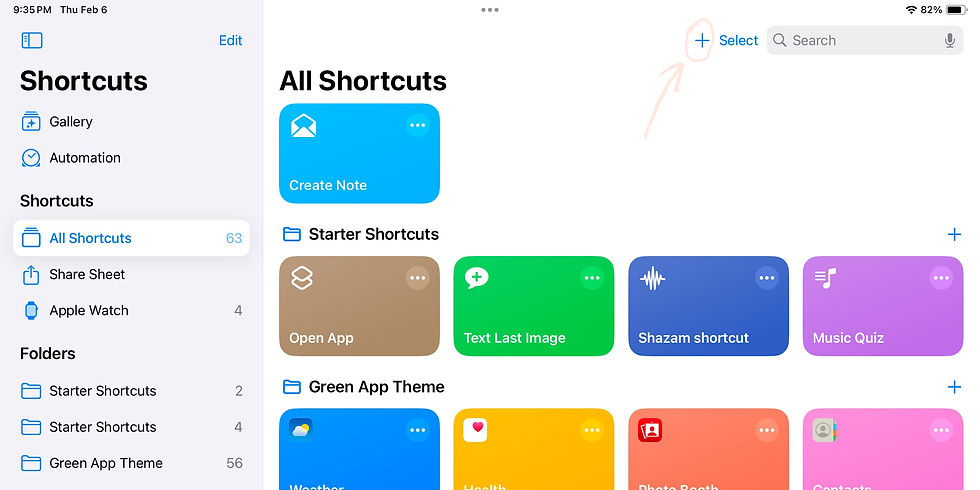
Once you're in Shortcuts, you'll have a few Starter options to choose from. For us, we'll be creating a new Shortcut so we can fully customize it from scratch to open the Camera App (in this case), since that's what we want our new custom icon to do.
Select the plus icon (+) at the top right of the screen to make a new Shortcut.
Next, we'll set up the shortcut's functions. Under actions, select Open App.

Click App in blue to select which App we're referring to. In this case, we want the Camera app.


Once this step is done, we've officially set up the automation shortcut! We've established that this shortcut, once clicked, will always open the Camera app directly.
Now that we've mapped what we want the shortcut to do, we'll put in our custom app icon image!
Tap where it says "Open App" at the top of the menu to open the dropdown, and select "Rename" to change this Shortcut to "Camera" so we can easily identify it (this will also be the name of the app as it appears on our Home Screen once we've added it).


Once the name is changed, now select Add to Home Screen. This is where we'll be able to change the icon for the shortcut to our new custom image.
NOTE: Selecting Choose Icon will NOT give you the option to change the app appearance on your home screen. This is only referring to the icon appearance within the Shortcuts app itself for this particular shortcut. You're welcome to do this step in addition if you would like.

The options menu will come up where you can select an option from within the Shortcuts app itself with different colors and icons, or you can select the left media option to choose from your photos, files, or even take a photo for the icon. In this case, we've saved our chosen icon to our Photos, so we'll select Choose Photo.

Select your Camera app icon from your Photos, then click Use. This is where it's helpful to have a dedicated album for your app themes so you can find it without scrolling through all your photos!


Once it brings you back to the Shortcuts menu, hit Add at the top right.

This will bring you out to your Home screen where you can view your brand new app icon!

Thing 3: Rinse and Repeat!
Congrats, you've created your first custom app icon! Every time we click our new icon, it'll take us to the Camera App, just like the default app!
NOTE: Since this is a shortcut, there will be a pop-up that appears upon first opening the app letting you know it was using the shortcut, but this disappears almost immediately.
Now we can hide the original Camera app so we can just use our new one, and we can repeat the above steps with any and all other apps we want to replace the icons for.
Doing these for multiple apps definitely can take some time, but once you've done it a few times, the process gets much faster, and it's really exciting to see your home screen filling with your own icons and designs
Thank you for following along with this how-to! Drop a comment below if this was helpful, and please comment any questions you have as well!
If you're looking for some custom app icons to use for your next iPad redesign, check out our Originals Collection that just launched, featuring six different custom app themes, all available for free!
Thank you, and we'll see you next time!
~Cleo
Comments